Vignette scope
This vignette describes how to install and configure external GIS software required by link2GI. It is based on the former RQGIS installation guide, with updates and simplifications.
The goal is a robust command-line–accessible GIS stack usable from R via link2GI.
The exact set of available algorithms depends on platform, architecture, and software versions.
Windows
QGIS, GRASS and SAGA
On Windows, OSGeo4W is the recommended installation method. It provides QGIS together with GRASS, SAGA, GDAL, OTB and many other tools.
Standalone QGIS installers work, but provide fewer third-party components.
Do not install QGIS 2.x.
The OSGeo4W installer is available from:
Express installation (minimal)
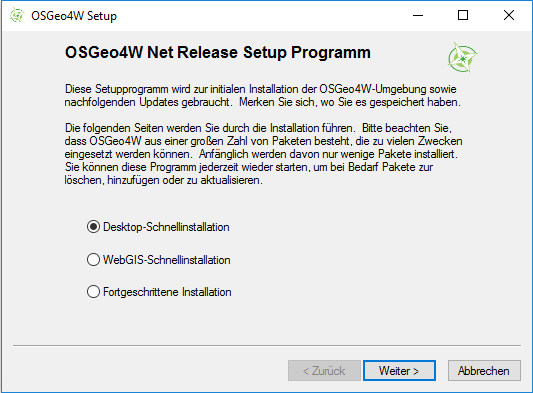
Steps:
- Select Express Installation
- Choose QGIS, GRASS and GDAL
- Start installation
This setup is comparable to the standalone QGIS installer.
Advanced installation (recommended)
For full command-line access and additional tools, use Advanced Installation.
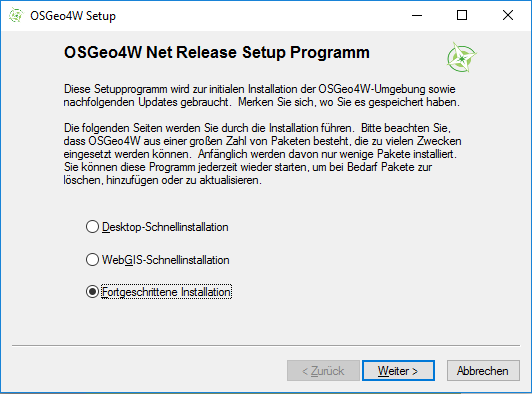
Proceed with defaults until Select Packages.
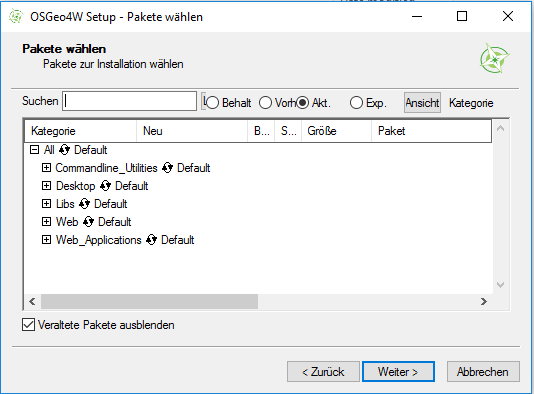
Select command-line tools such as GDAL, Python, and others as needed:
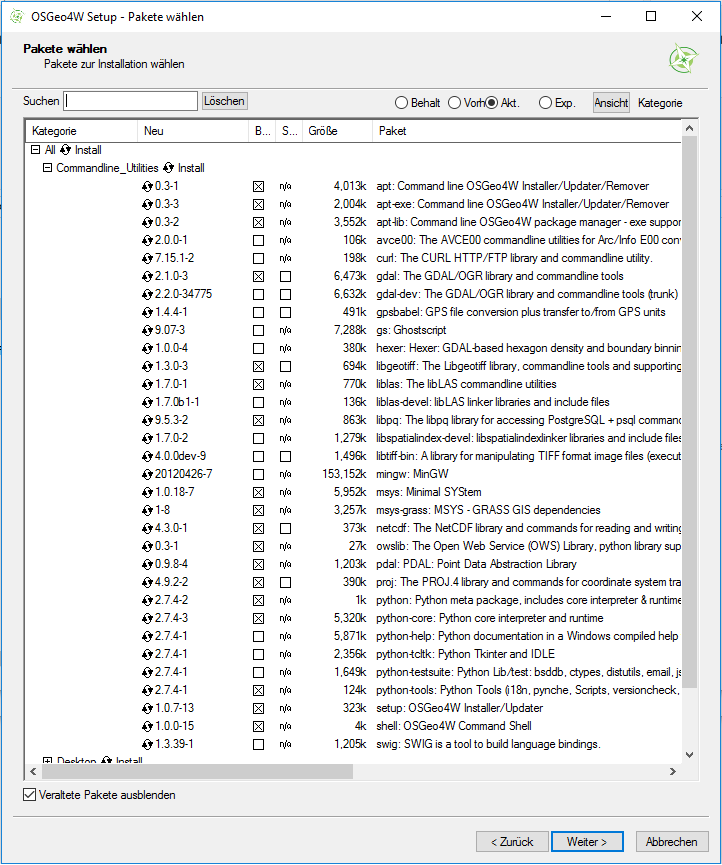
Additionally select:
- GRASS Desktop GIS
- Orfeo Toolbox
- SAGA GIS
- QGIS (LTR + current release recommended)
Accept suggested dependencies:
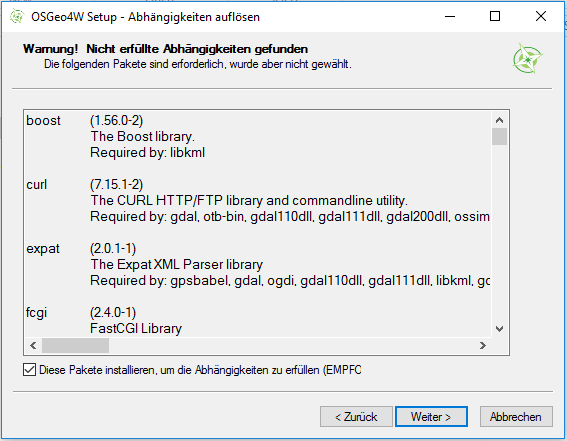
The download and installation process may take some time.
Installed components can later be modified via:
OSGeo4W/bin/osgeo4w-setup.exe
Optional: LAStools
For LiDAR processing support: https://rapidlasso.de/how-to-install-lastools-toolbox-in-qgis/
Orfeo Toolbox (Windows)
Download the latest Windows binary from: https://www.orfeo-toolbox.org/download/
OTB binaries do not require administrative privileges.
Extract the archive and use otbcli_* tools directly or via link2GI.
See the official cookbook for details: https://www.orfeo-toolbox.org/CookBook/Installation.html#windows
Linux
Ubuntu / Debian
Distribution repositories usually ship outdated QGIS versions. Use the official QGIS repositories instead:
https://www.qgis.org/download/
Remove old installations first:
sudo apt-get --purge remove qgis
sudo apt autoremove --purge-remove
sudo apt autoremove
sudo apt update
Add the official QGIS repository (example for Ubuntu 22.04):
sudo apt install gnupg software-properties-common

wget -qO - https://qgis.org/downloads/qgis-2020.gpg.key \
  | sudo gpg --no-default-keyring \
    --keyring gnupg-ring:/etc/apt/trusted.gpg.d/qgis-archive.gpg \
    --import

sudo add-apt-repository "deb https://qgis.org/debian focal main"
Install required software:
sudo apt update
sudo apt install qgis qgis-plugin-grass grass saga otb-bin python-qgis
Note: QGIS currently supports only SAGA LTS 2.3.x. Other versions require manual compilation.
Arch Linux
QGIS, GRASS and SAGA are available via the AUR: https://aur.archlinux.org/
Fedora
Install via the system package manager:
sudo dnf install qgis qgis-python qgis-grass saga grass-gui grass-libs
macOS
SAGA
There is no official SAGA binary for macOS. Use Homebrew LTS builds:
brew install saga-gis-lts
brew link saga-gis-lts --force
Forced linking is required so QGIS can detect SAGA.
GRASS
Install GRASS via Homebrew:
brew install grass grass7 grass8
Binary installers are available at: https://grass.osgeo.org/download/mac/
Homebrew installations are recommended.
QGIS
Two options exist:
Homebrew (recommended)
brew install qgis3
Prebuilt bottles are used by default. Source builds may take >30 minutes.
Important: Install GRASS and SAGA before QGIS so that paths are detected correctly.